Expo 리액트 네이티브 구글 로그인 환경 구현입니다.
1. 먼저 expo-crypto피어 종속성이며 와 함께 설치해야 합니다 expo-auth-session.
npx expo install expo-auth-session expo-crypto expo-random
2. 코드 작성법 입니다.
import * as React from 'react';
import * as WebBrowser from 'expo-web-browser';
import * as Google from 'expo-auth-session/providers/google';
import { Button } from 'react-native';

WebBrowser.maybeCompleteAuthSession();

export default function App() {
  const [request, response, promptAsync] = Google.useAuthRequest({
    expoClientId: 'GOOGLE_GUID.apps.googleusercontent.com',
    iosClientId: 'GOOGLE_GUID.apps.googleusercontent.com',
    androidClientId: 'GOOGLE_GUID.apps.googleusercontent.com',
    webClientId: 'GOOGLE_GUID.apps.googleusercontent.com',
  });

  React.useEffect(() => {
    if (response?.type === 'success') {
      const { authentication } = response;
      }
  }, [response]);

  return (
    <Button
      disabled={!request}
      title="Login"
      onPress={() => {
        promptAsync();
        }}
    />
  );
}
3. 이제 https://console.cloud.google.com/ 접속 한 후 사용자 인증 정보를 받아와야 합니다.

1) 안드로이드
- 사용자 인증저보 만들기를 눌러 OAuth 클라이언트 ID를 선택합니다.
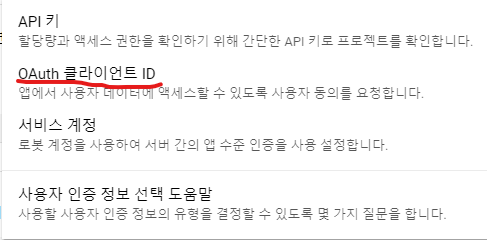
- 애플리케이션 유형 Android를 선택합니다.

패키지 이름 : com.example. { 짓고싶은 이름} (예) com.example.myapp
SHA-1 인증서 : SHA 인증서는 VScode에 터미널을 열고 내 프로젝트 경로에서 아래 expo credentials:manager -p android 입력합니다.
expo credentials:manager -p android>> Update upload Keystore 를 선택해줍니다. 키보드로 방향키로 움직이시면 됩니다.
>> Generate new keystore 를 선택해줍니다.
>> Go back to experience overview를 선택해줍니다.
VScode에 나오는 SHA-1 인증서 번호를 복사해 붙여 넣고 생성 합니다.
- 프로젝트 app.json 파일을 엽니다. 안드로이드 클라이언트 생성할때 입력한 패키지이름을 입력합니다.
"package" : "com.example.myapp"
"android": {
  "adaptiveIcon": {
    "foregroundImage": "./assets/adaptive-icon.png",
    "backgroundColor": "#ffffff"
  },
  "package" : "com.example.myapp"
},
2) IOS위내용과 다음 까지는 같습니다.- 사용자 인증정보 만들기 클릭 => 애플리케이션 유형* => IOS 클릭
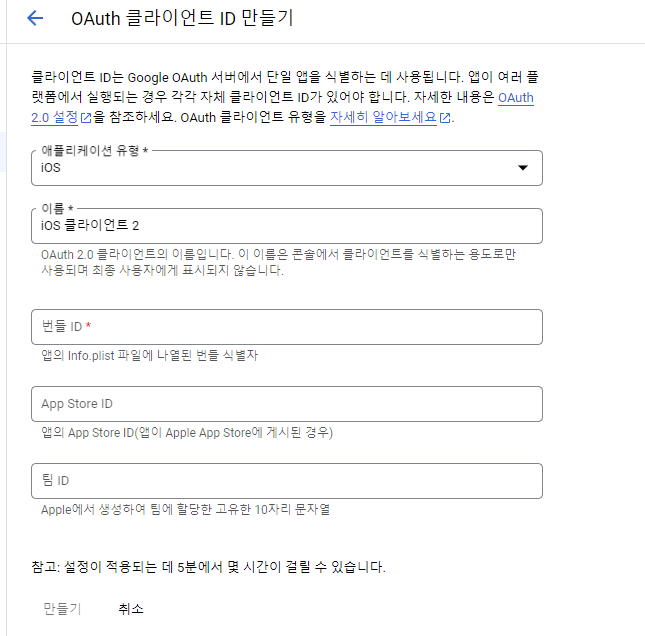
- 번들ID : com.example. { 짓고싶은 이름} (예) com.example.myapp
입력하고 만들기 누르고 Oauth client 접속해보면 오른쪽에 클라이언트ID, IOS URL 스키마를 확인 합니다.

- app.json 파일에 "bundleIdentifier" : "com.example.myapp" 를 입력합니다. 위 사진의 번들ID와 동일 해야 합니다.
"ios": {
  "supportsTablet": true,
  "bundleIdentifier" : "com.example.myapp"
},
다음으로 해야 할 일은 GCP(Google Cloud Platform)에서 키를 발급하는 것입니다. 사용자 인증 정보 탭에 들어가, OAuth 2.0 클라이언트를 위한 ID를 발급 받습니다. 웹 애플리케이션의 클라이언트 ID를 생성해줍니다
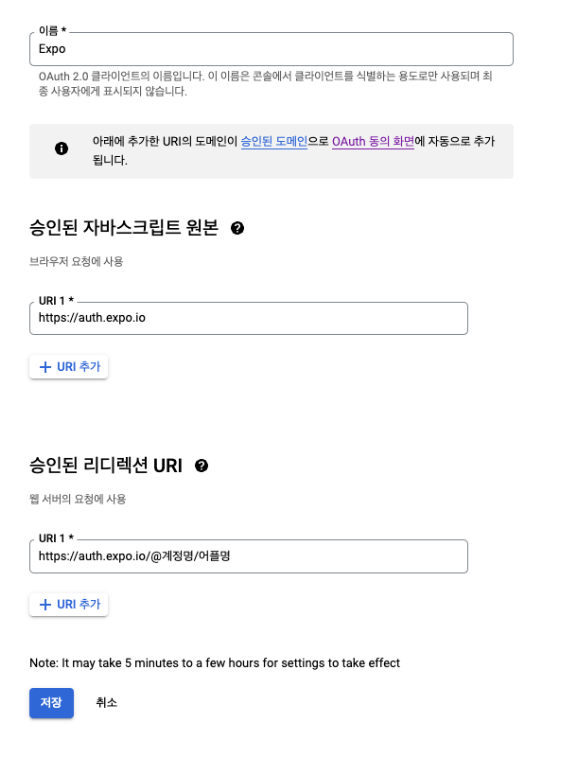
승인된 자바스크립트 원본에 https://auth.expo.io를 입력해줍니다. 승인된 리다이렉트 URI에는 https://auth.expo.io/@계정명/어플명을 입력해줍니다. 참고로 계정명은 expo 계정 이름이며, 어플명은 app.json 파일의 slug 항목에 해당하는 이름입니다. 따로 설정해주지 않았다면 프로젝트명과 동일합니다.
{
  "expo": {
    "name": "프로젝트명",
    "slug": "어플명",
    }
}
구글 Oauth 클라이언트 ID 발급을 완료 했습니다. useAuthRequest 안에 넣어주면 됩니다.
'React Native' 카테고리의 다른 글
| react native useQuey 란? (0) | 2023.07.20 |
|---|---|
| Expo_SDK 49 업그레이드 (0) | 2023.07.16 |
